
Hosting companies were some of the first businesses to accept Bitcoin, and for good reason: their customers are global, technical, and often tired of card declines. If you run WHMCS, adding a Bitcoin payment gateway lets clients pay hosting, domain and VPS invoices in crypto, while the payment lands straight in your own wallet.
This guide shows how to set up a WHMCS Bitcoin payment gateway with Jamesinvoicing, how invoices are marked paid automatically, and the settings that prevent problems later.
Why hosting companies accept Bitcoin
- Fewer chargebacks. Confirmed blockchain payments can't be reversed by a card dispute, which matters for digital services that are easy to abuse.
- Customers in every country can pay. Many hosting clients live where cards are hard to get or international payments are blocked.
- Recurring billing still works. WHMCS keeps generating renewal invoices, and each one can be paid in crypto.
- Money goes to your wallet. With a non-custodial gateway there's no processor balance to be frozen.
We compared the options in detail in our best crypto payment gateway for hosting guide.
What you need before you start
- A WHMCS installation where you can upload files (cPanel File Manager, SFTP or SSH).
- A free Jamesinvoicing account.
- A Bitcoin wallet you control, ideally one that exports an xPub so every invoice gets its own address. New to xPubs? Read what an xPub is.
Step-by-step: install the WHMCS Bitcoin gateway
Step 1: Generate an API key
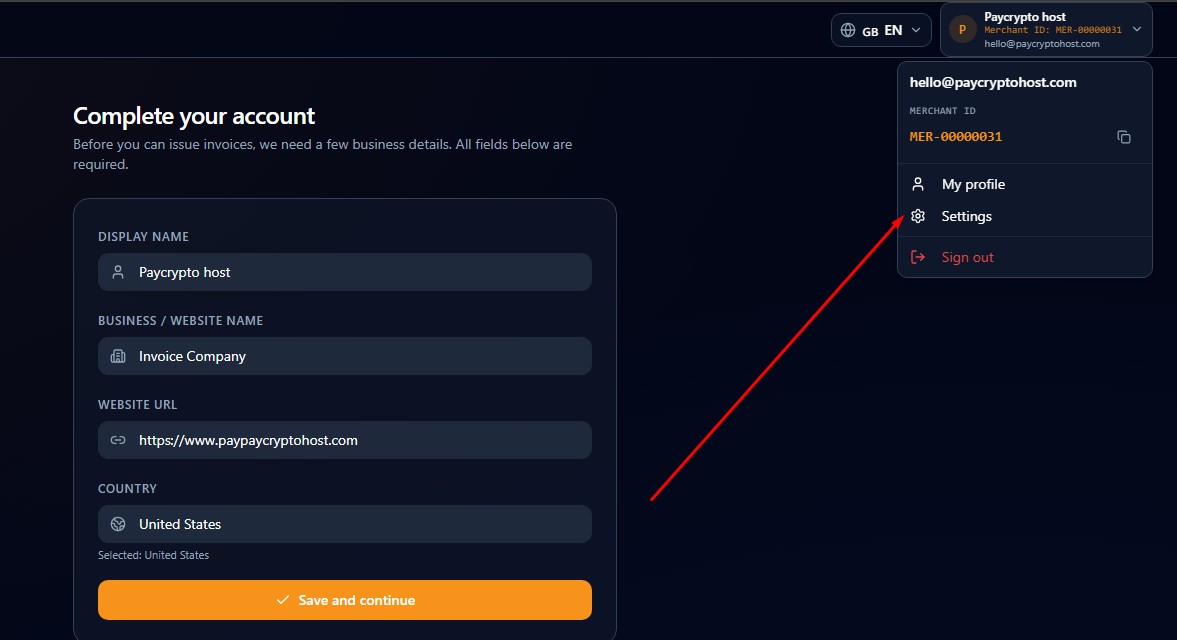
In the Jamesinvoicing dashboard, go to API keys and create a key for your WHMCS site. Keep it private: treat it like a password.
Step 2: Add and verify your xPub
Go to Profile → Bitcoin settings, paste your xPub (or zpub) and check that the first derived address matches your wallet.
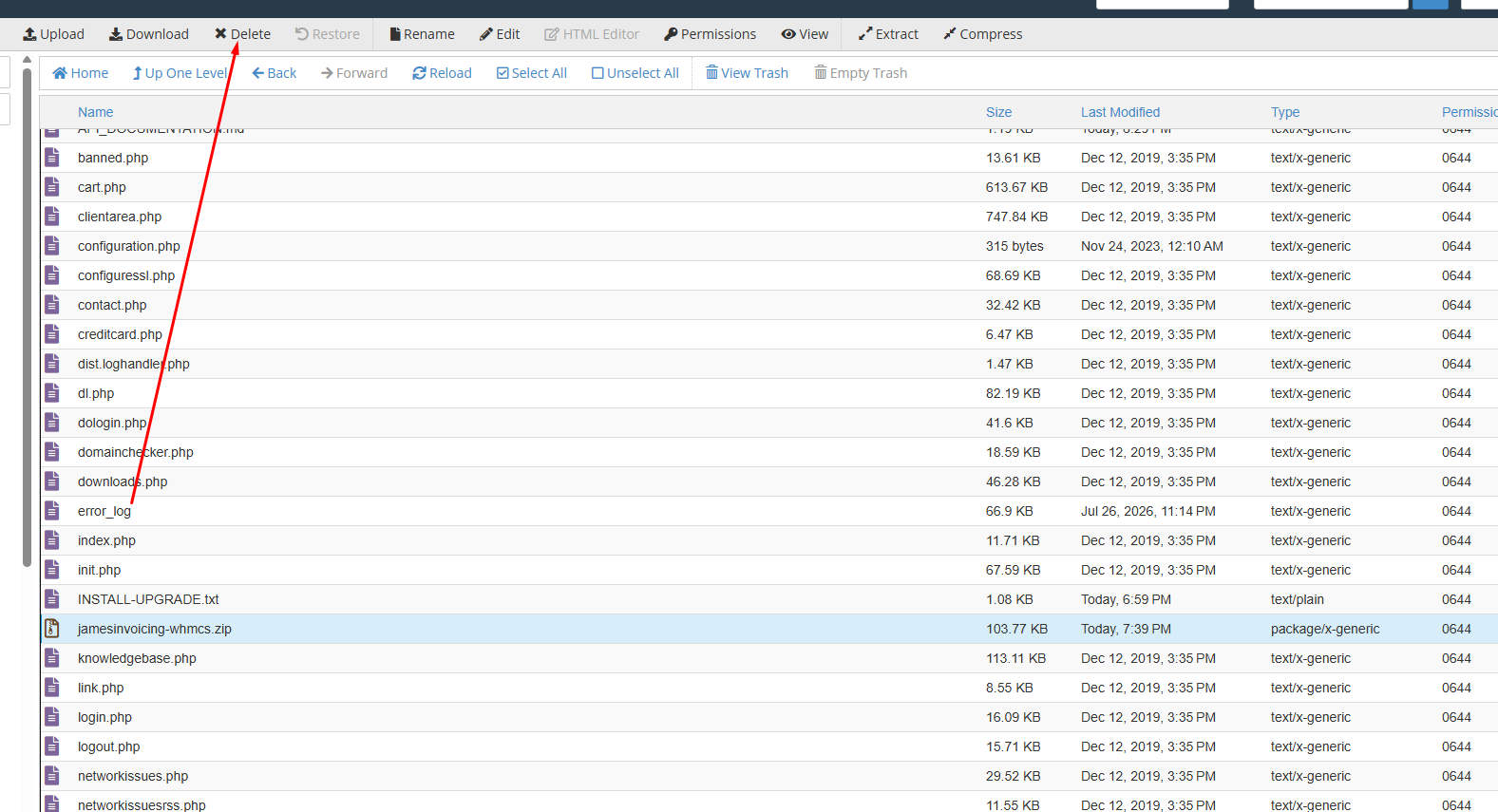
Step 3: Upload the gateway module
Download the Jamesinvoicing WHMCS module from the WHMCS integration page and copy the gateway files into modules/gateways/ on your WHMCS server. WHMCS's own documentation explains how gateway modules are organised.
Step 4: Activate the gateway in WHMCS
In the WHMCS admin area, go to Setup → Payments → Payment Gateways, activate Jamesinvoicing and paste your API key. Choose a clear display name such as "Pay with Bitcoin or card".
Step 5: Make sure the callback URL is reachable
Jamesinvoicing tells WHMCS an invoice is paid through the module's callback URL. It must be reachable from the public internet, without HTTP password protection or a firewall rule blocking it, otherwise invoices stay "Unpaid" even after the client has paid.
Step 6: Run a real test
Create a small test invoice for your own client account, choose the Jamesinvoicing gateway and pay it. Watch the invoice move from unpaid to paid in WHMCS once the payment is confirmed.
The full illustrated walkthrough, including cPanel screenshots, is in the installation guide.
How payment confirmation works
When a client clicks Pay on a WHMCS invoice:
- They're taken to a Jamesinvoicing payment page priced in your WHMCS currency.
- The page shows a unique Bitcoin address and QR code for that invoice (and other payment options you've enabled).
- Once the transaction is detected and confirmed on the blockchain, Jamesinvoicing notifies WHMCS and the invoice is marked Paid automatically.
- Your client gets their service, and the Bitcoin is already in your wallet.
You can check any payment yourself on a public explorer such as mempool.space or with our payment tracker.
Let clients without Bitcoin pay by card
Not every hosting client owns crypto. On eligible invoices, Jamesinvoicing can offer a card payment option through a third-party provider: the client pays by card, and Bitcoin is delivered to your address. You still receive Bitcoin, and you didn't have to open a card merchant account. The provider sets its own minimums, fees and identity checks for the payer.
Settings that prevent problems
- Invoice expiry vs Bitcoin confirmations. Give invoices enough time to confirm, especially when the network is busy.
- Underpayments. Decide whether to accept small shortfalls or ask the client to top up. Jamesinvoicing flags underpaid and overpaid invoices.
- Renewals. Each renewal invoice gets a fresh payment request, so old addresses aren't reused.
- Clear wording. Tell clients on the invoice which coins you accept and roughly how long confirmation takes.
WHMCS Bitcoin gateway FAQ
Do I need to update WHMCS to use the gateway?
Use a currently supported WHMCS version. If your WHMCS is very old, test on a staging copy first.
Can clients pay in USDT as well as Bitcoin?
Yes, if you enable it. See our guide to accepting USDT payments.
Does Jamesinvoicing hold my funds?
No. Payments go directly to your wallet. Jamesinvoicing only tracks invoices and tells WHMCS when they're paid.
Is there a WooCommerce version too?
Yes. See accept crypto on WooCommerce and our WordPress and WooCommerce checklist.
Add Bitcoin to WHMCS today
A WHMCS Bitcoin gateway gives your hosting clients another way to pay, cuts chargebacks and keeps your revenue in your own wallet. Create a free Jamesinvoicing account, connect your wallet and activate the module in under 15 minutes. More hosting resources are on our hosting companies page.