
REST API · v1
Jamesinvoicing API
Create Bitcoin invoices, query their status, and react to confirmations in real time. All endpoints return JSON. Authentication uses bearer tokens scoped to a single merchant account.
Android App
The official Jamesinvoicing mobile app for Android. Create invoices on the go, get instant push notifications the moment a payment lands, and manage your Bitcoin merchant account right from your phone.
- Instant push notifications
- One-tap invoicing
- Secure account access
- Full self-custody
 v1.1.0 · 6.3 MB · Android 8.0+
Jamesinvoicing
Bitcoin merchant · self-custody
WordPress Plugin
Pay in crypto, self-custodial cryptocurrency payment and invoicing platform designed for merchants.
Requires WordPress 6.0+, WooCommerce 8.0+, PHP 7.4+. Works with both Classic and Block Checkout.
What's new in v2.0.2
- Supports WooCommerce plus CartFlows, FunnelKit/WooFunnels, LaunchFlows and WPFunnels when they create a WooCommerce order.
- The invoice amount comes from the final WooCommerce order total, including variations, coupons, taxes, shipping, fees and order bumps.
- Checkout retries reuse the existing invoice for that order instead of creating a duplicate.
- Successful WooCommerce orders open the hosted Jamesinvoicing payment page with the merchant, invoice, amount, available coins, address and QR code.
- Signed notifications include timestamp and replay checks; paid states are confirmed again with the Jamesinvoicing API before the order changes.
- WooCommerce High-Performance Order Storage is supported through WooCommerce's order APIs.
- New Integrations and System Status screens show funnel detection, connection health, webhook delivery and scheduled checks without displaying secrets.
Upgrading: deactivate the old plugin, upload v2.0.2 and activate — settings, xPub and existing orders are preserved and the new columns are added automatically.
Install in 4 steps
Download the .zip
Upload to WordPress
Activate
Paste your API Key
Generate your key under Dashboard → API Keys. The plugin only needs the API Key — no secret, no merchant ID.
No WooCommerce? Use the built-in checkout
On a plain WordPress site — a page builder, a custom theme or a simple order form — add this shortcode to any page. The customer fills in their email, clicks the button and goes straight to the payment page with the amount, wallet address and QR code. A copy of the invoice is emailed to them too. No WooCommerce required.
[jamesinvoicing_checkout amount="9.50" item="Unlimited Entertainment" title="Checkout"]

// leave amount out to let the customer type their own amount
[jamesinvoicing_checkout item="Support the project"]

// keep the payment page on your own site instead of jamesinvoicing.com
[jamesinvoicing_checkout amount="25" mode="onsite" invoice_page="https://example.com/pay/"]
// the page at invoice_page must contain: [jamesinvoicing_invoice]
Any existing order link can also be turned into a payment link: https://yoursite.com/?pch_pay=PAYMENT_ID redirects to that invoice's payment page.
Still landing on a "thanks for your order" page right after Place Order? From v2.0.0 the default is Send the customer to the Jamesinvoicing payment page (WooCommerce → Settings → Payments → Pay with Jamesinvoicing.com → After checkout), and funnel checkouts always use it. Older installs that saved the on-site option can switch it back there.
Seeing "There are no payment methods available" at checkout? Your store uses the WooCommerce block-based Checkout page. Update to WordPress Plugin v2.0.2 or later, which supports both the block Checkout and the Classic Checkout. Then check that Pay with Jamesinvoicing.com is enabled under WooCommerce → Settings → Payments and that your API key is saved in the plugin settings.
Payment method appears, but Place Order does not open the payment page? Update to WordPress Plugin v2.0.2. It safely reuses an existing invoice for a retried order and redirects the buyer to the complete hosted payment page instead of trying to create a duplicate invoice.
CartFlows checkout flow (v2.0.0)
CartFlows, FunnelKit/WooFunnels, LaunchFlows and WPFunnels are detected automatically and keep their own funnel steps. Pressing Place Order no longer lands the buyer on the thank-you page before paying:
CartFlows checkout → Place Order
  → WooCommerce creates the order (pending)
  → plugin sends the final WooCommerce total to Jamesinvoicing
  → buyer is redirected to the Jamesinvoicing payment page (amount, address, QR)
  → buyer pays; Jamesinvoicing verifies on-chain
  → payment detected → confirming → confirmed
  → WooCommerce order updated (on-hold → processing)
  → buyer returns to the CartFlows / WooCommerce thank-you page
- The invoiced amount is the final WooCommerce order total, so order bumps, upsells, coupons, tax, shipping and fees are included.
- The store's own thank-you URL is recorded server to server at checkout; the return link is never taken from the browser.
- Orders stay pending or on-hold until the blockchain confirmations are verified. Nothing is marked paid from a URL parameter.
- Upsell and downsell steps keep running: the buyer re-enters the funnel at the merchant's configured thank-you step.
WooCommerce order status mapping
The plugin automatically flips each WooCommerce order as Jamesinvoicing reports back:
| Jamesinvoicing event | WooCommerce status | wc slug |
|---|---|---|
| payment.detected | On hold | wc-on-hold |
| payment.confirming | On hold | wc-on-hold |
| payment.underpaid | On hold | wc-on-hold |
| payment.confirmed | Processing* | wc-processing* |
| payment.expired | Failed | wc-failed |
Detected, confirming and underpaid orders remain on hold. After server verification, the plugin calls WooCommerce's normal payment completion method; physical orders usually move to Processing, while WooCommerce may complete eligible virtual orders. The plugin never forces every order to Completed.
Verify it works
- Open Jamesinvoicing → Add API, save the API key, and confirm that you see a green Connected badge.
- Open Jamesinvoicing → xPub Manager, paste your Bitcoin receiving address (bc1…, 1…, or 3…) or your xPub and click Save & verify. Jamesinvoicing validates the format and registers it for direct deposits.
- Place a test order on your store — Pay with Bitcoin (Jamesinvoicing) must appear at checkout. Payment confirmations arrive by email/push, not inside the plugin.
Troubleshooting
"There are no payment methods available."
Your store uses Block Checkout. Make sure you are on v1.2.0 or newer — Block Checkout support is built in. Deactivate older versions and re-upload the latest zip above.
"Invalid credentials" / 401 on Test connection
The API Key under Add API does not match an active key. Copy a fresh Active key from your dashboard → API Keys and save again. Keys start with pch_live_ or pch_test_.
Bitcoin address rejected as invalid
Make sure the address starts with bc1, 1, or 3 and has no spaces. Only standard Bitcoin (BTC) addresses are accepted — Lightning, BCH and other formats are rejected.
"Key is suspended" / 403
Your API Key was disabled. Rotate or create a new one under Dashboard → API Keys, then update Add API in WordPress.
Plugin menu does not appear after activation
WooCommerce must be installed and active first. Install WooCommerce, then re-activate Jamesinvoicing.
You keep custody
Customers pay BTC directly to the Bitcoin address you registered. Jamesinvoicing never touches the funds.
WHMCS module
Accept Bitcoin on any WHMCS install. Unique address per invoice, signed webhooks, auto-mark as paid — funds settle straight to your wallet.
Requires WHMCS 8.0+, PHP 7.4+, cURL + OpenSSL. Module path: modules/gateways/jamesinvoicing.
Install in 5 steps
Download the .zip
Upload to WHMCS
modules/ folder via FTP/SSH so files land at /whmcs/modules/gateways/jamesinvoicing.php.Activate gateway
Enter credentials
Register webhook
payment.* events.Grab credentials under Dashboard → API Keys. Use pch_test_* keys for Sandbox mode.
Step-by-step: install on cPanel with screenshots
Follow these screens to add the Jamesinvoicing Bitcoin & crypto gateway to WHMCS through cPanel File Manager.
Part 1 — Upload the module in cPanel
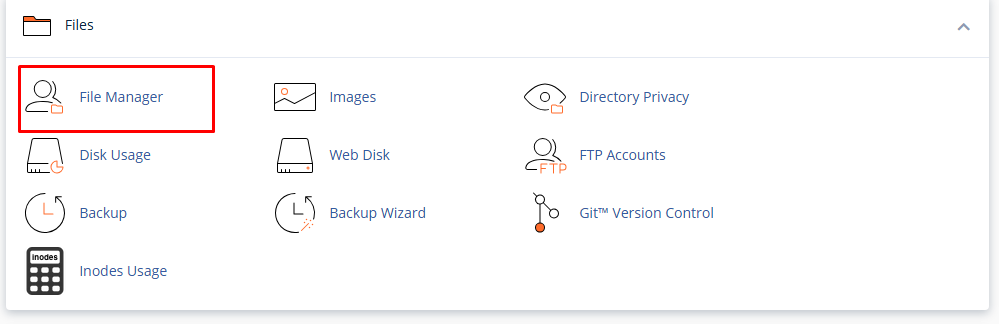
1Open File Manager in cPanel
Log in to your hosting cPanel, scroll to the Files section and click File Manager.
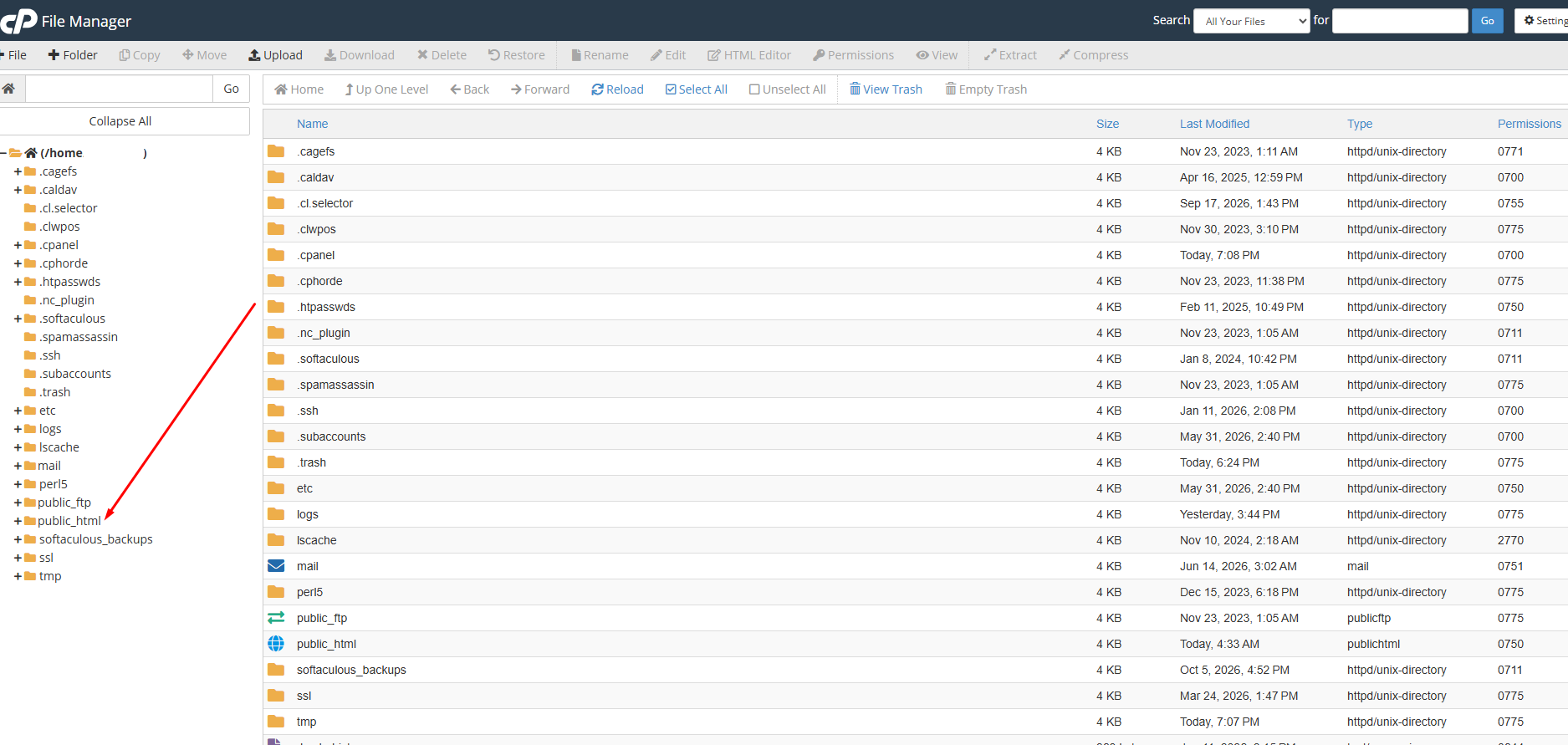
2Open public_html
In the folder tree on the left, click public_html — your website's main folder.
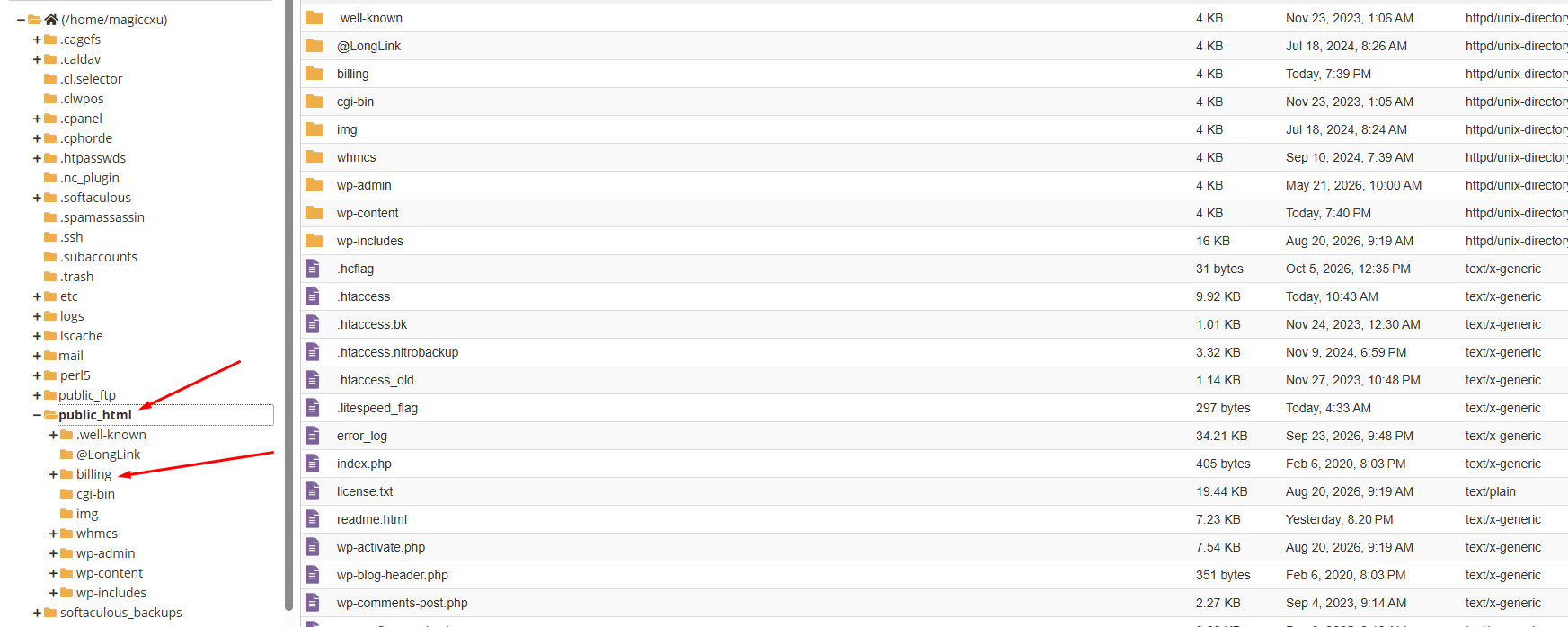
3Open your WHMCS folder
Click the folder where WHMCS is installed — usually billing or whmcs.
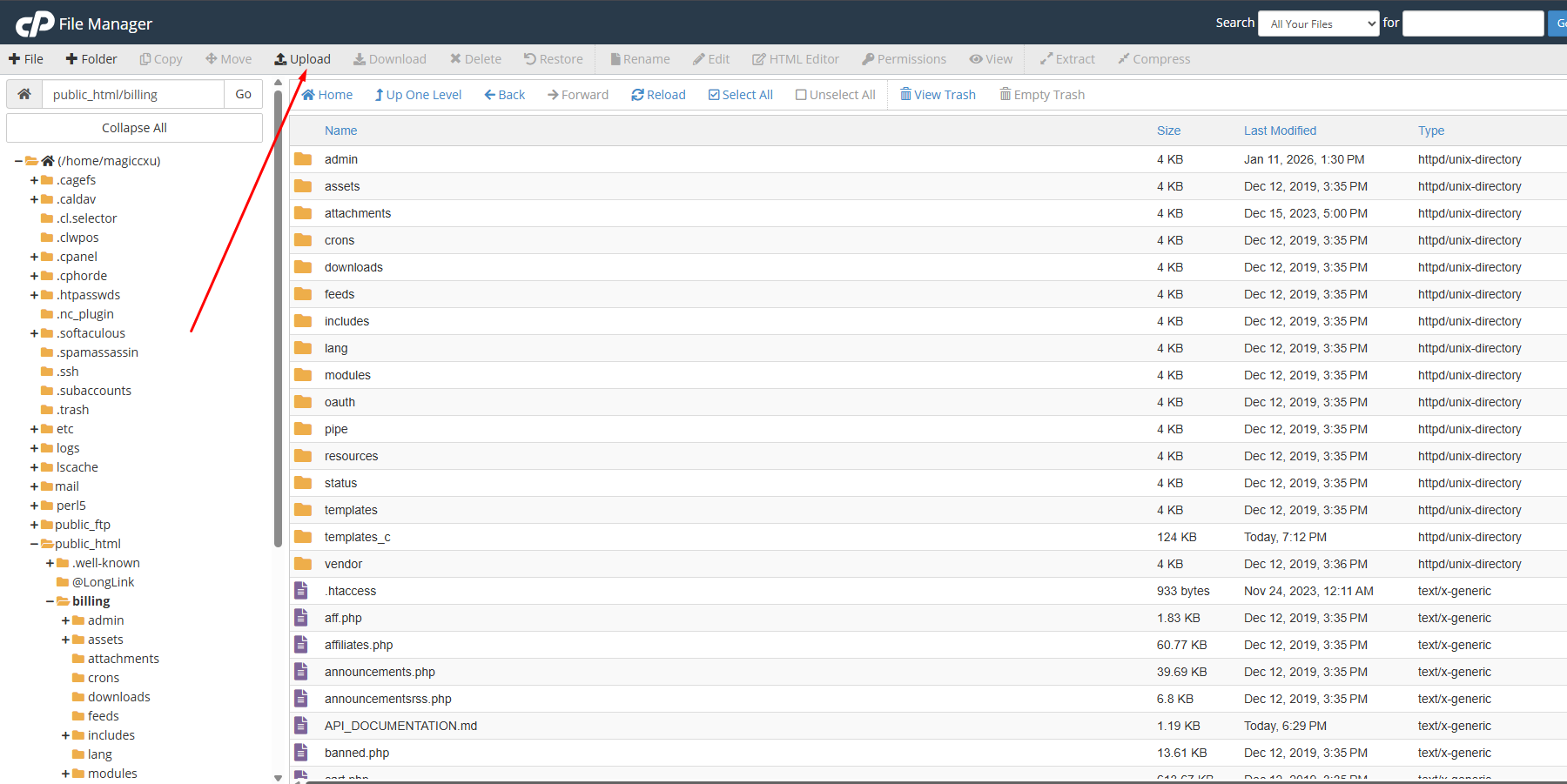
4Click Upload
Check the path shows public_html/billing, then click Upload in the top toolbar.
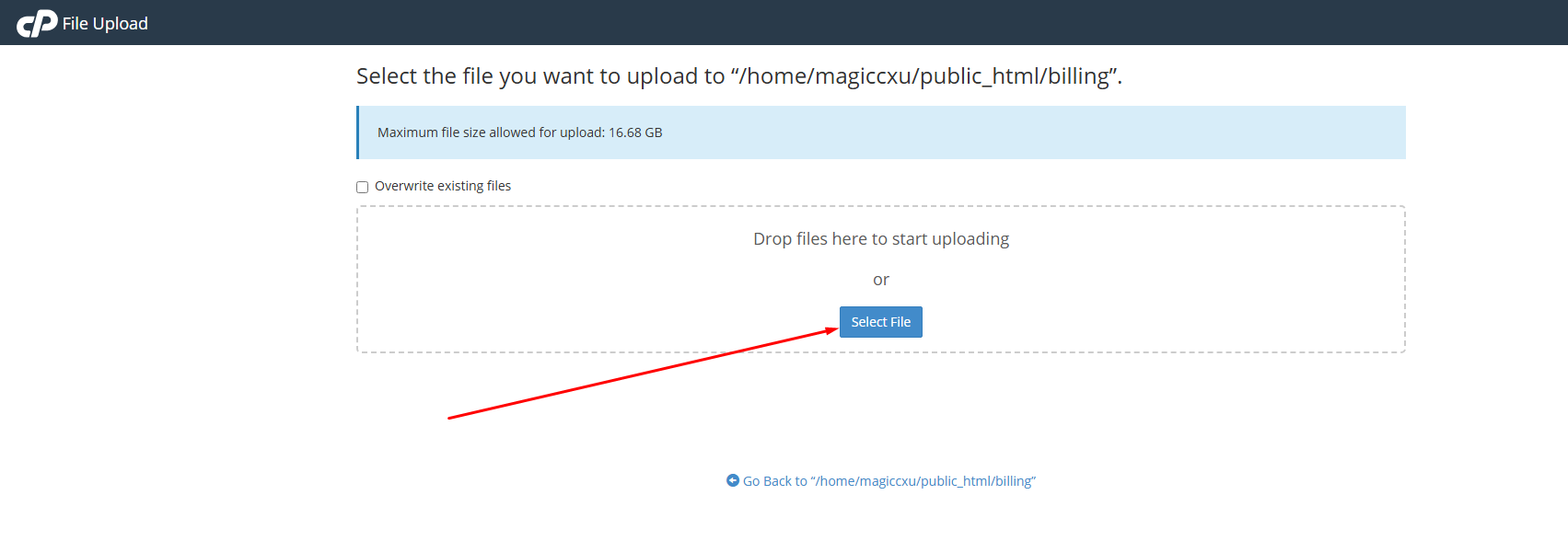
5Select jamesinvoicing-whmcs.zip
Click Select File and choose the jamesinvoicing-whmcs.zip you downloaded above. Tick Overwrite existing files when upgrading.
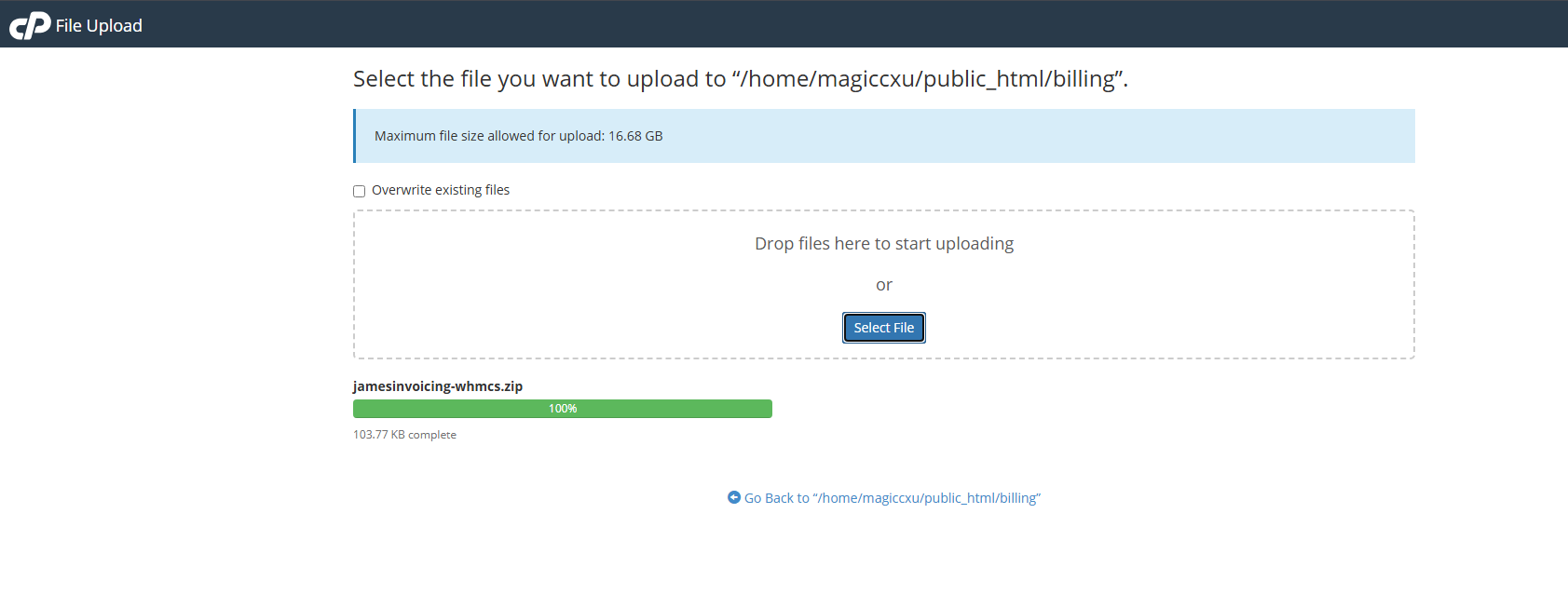
6Wait for 100% complete
When the bar turns green at 100%, click Go Back to return to the billing folder.
Part 2 — Extract the files
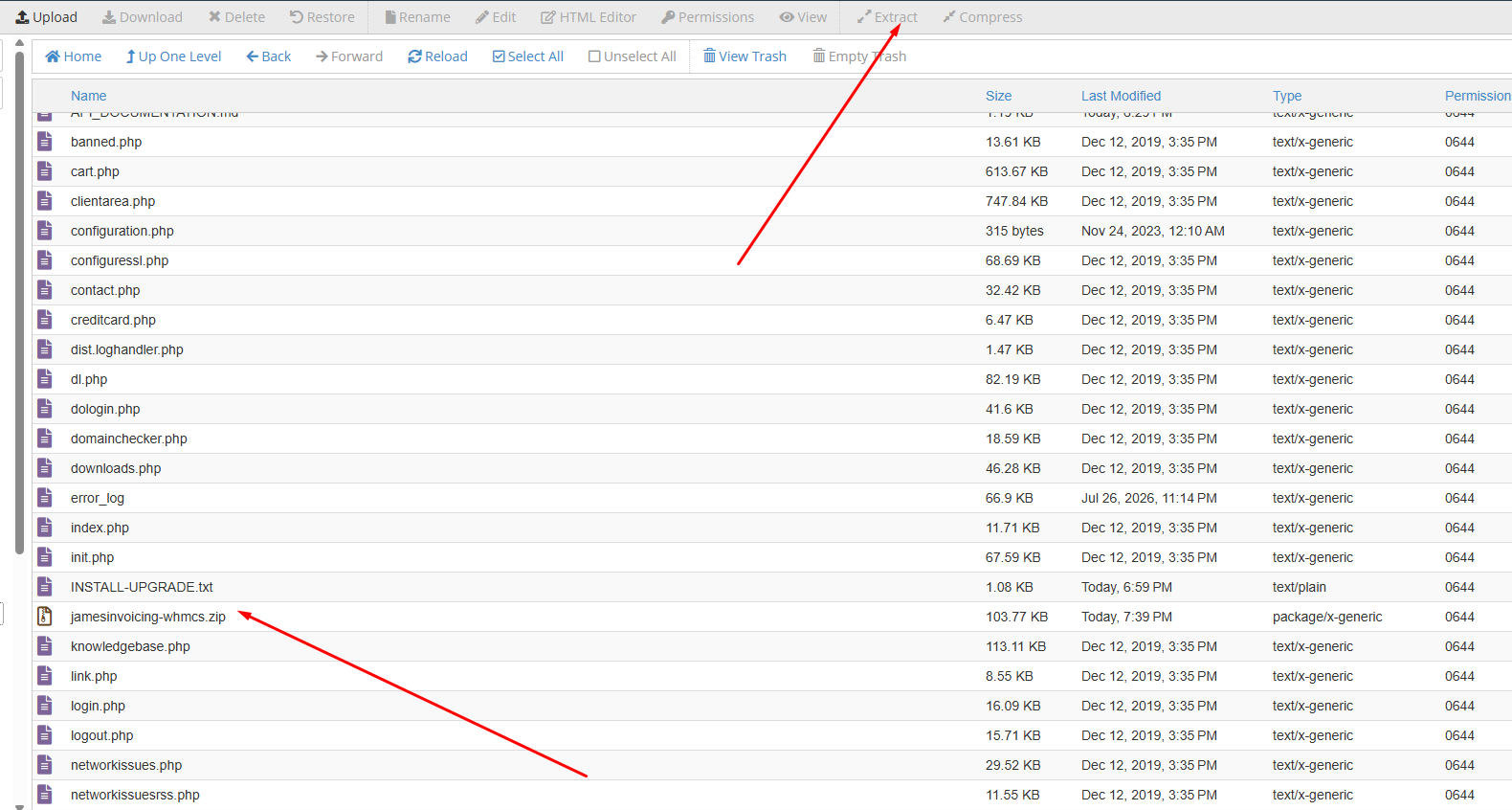
7Extract the zip
Select jamesinvoicing-whmcs.zip and click Extract. Keep the destination as public_html/billing so files land in modules/gateways.
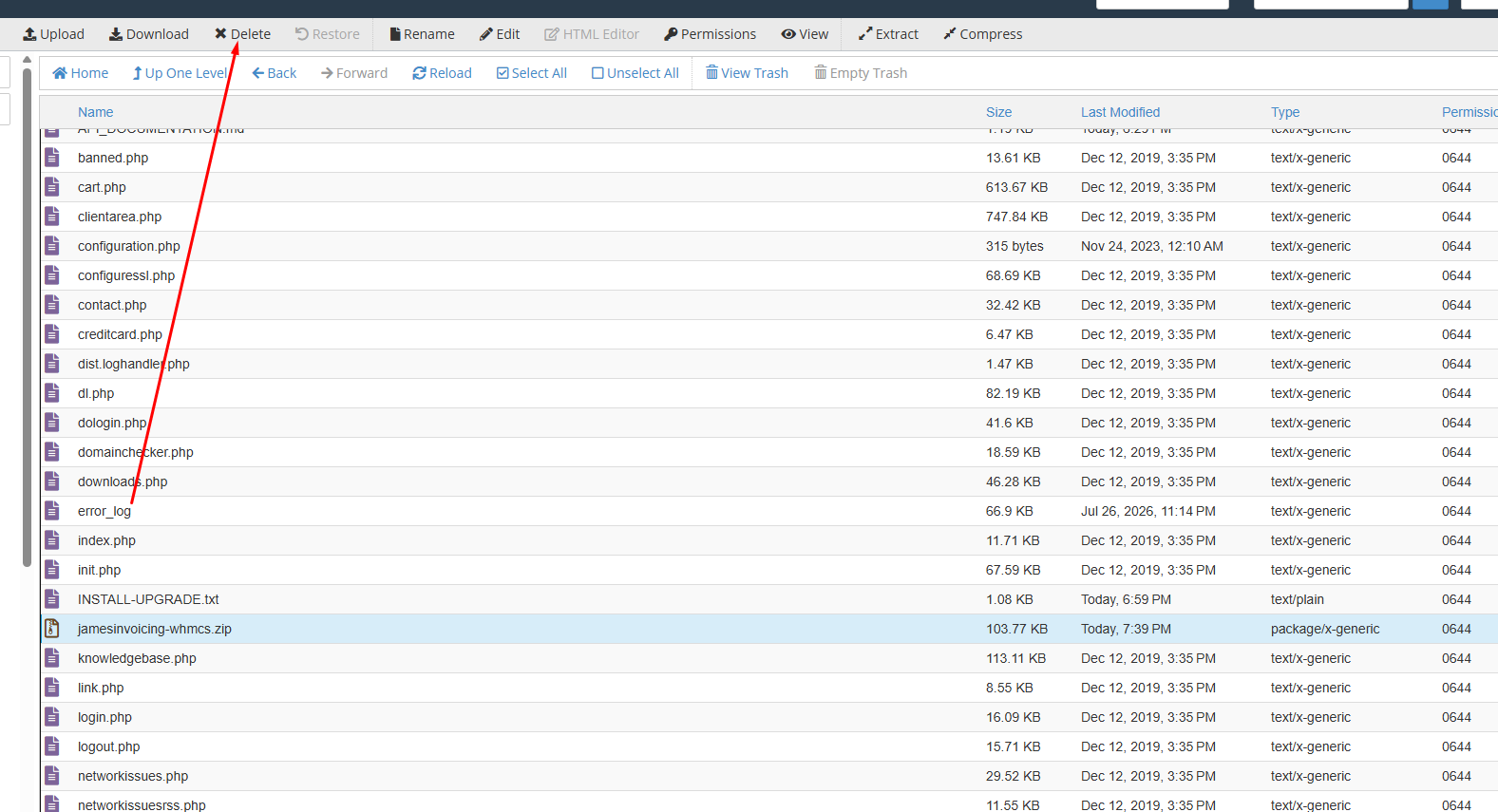
8Delete the zip
After extracting, select the zip again and click Delete to keep the folder tidy.
Part 3 — Activate in WHMCS admin
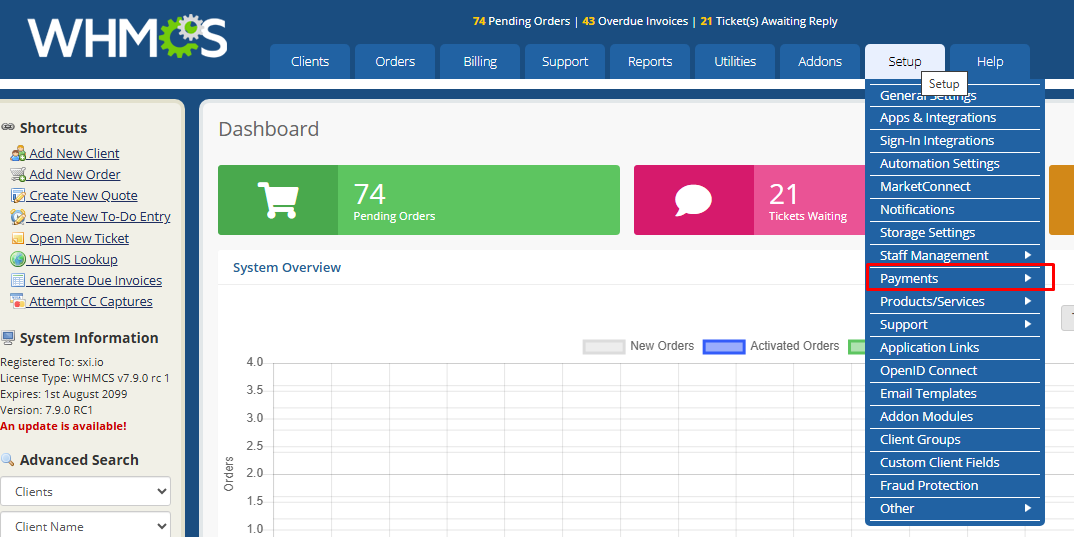
9Open Setup → Payments
In your WHMCS admin area, open the Setup menu and hover Payments.
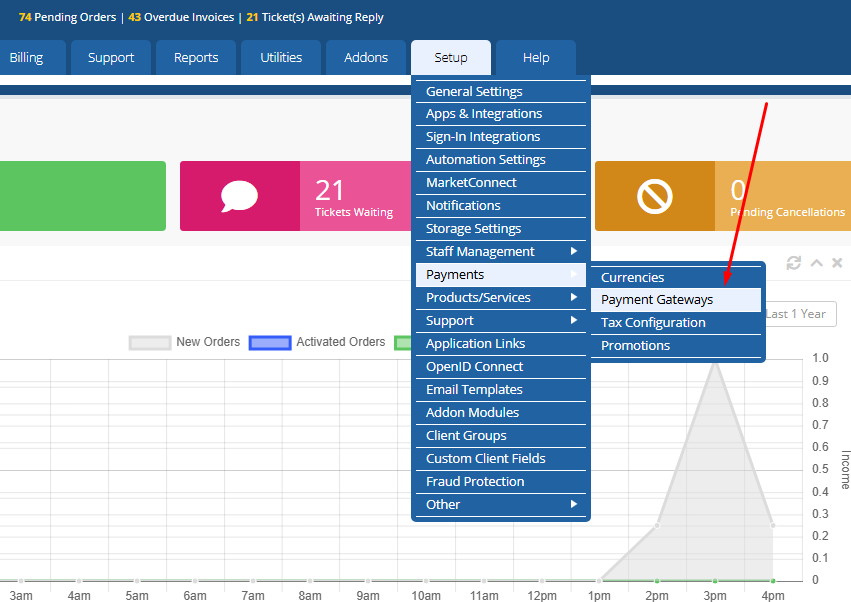
10Click Payment Gateways
From the Payments submenu, click Payment Gateways.
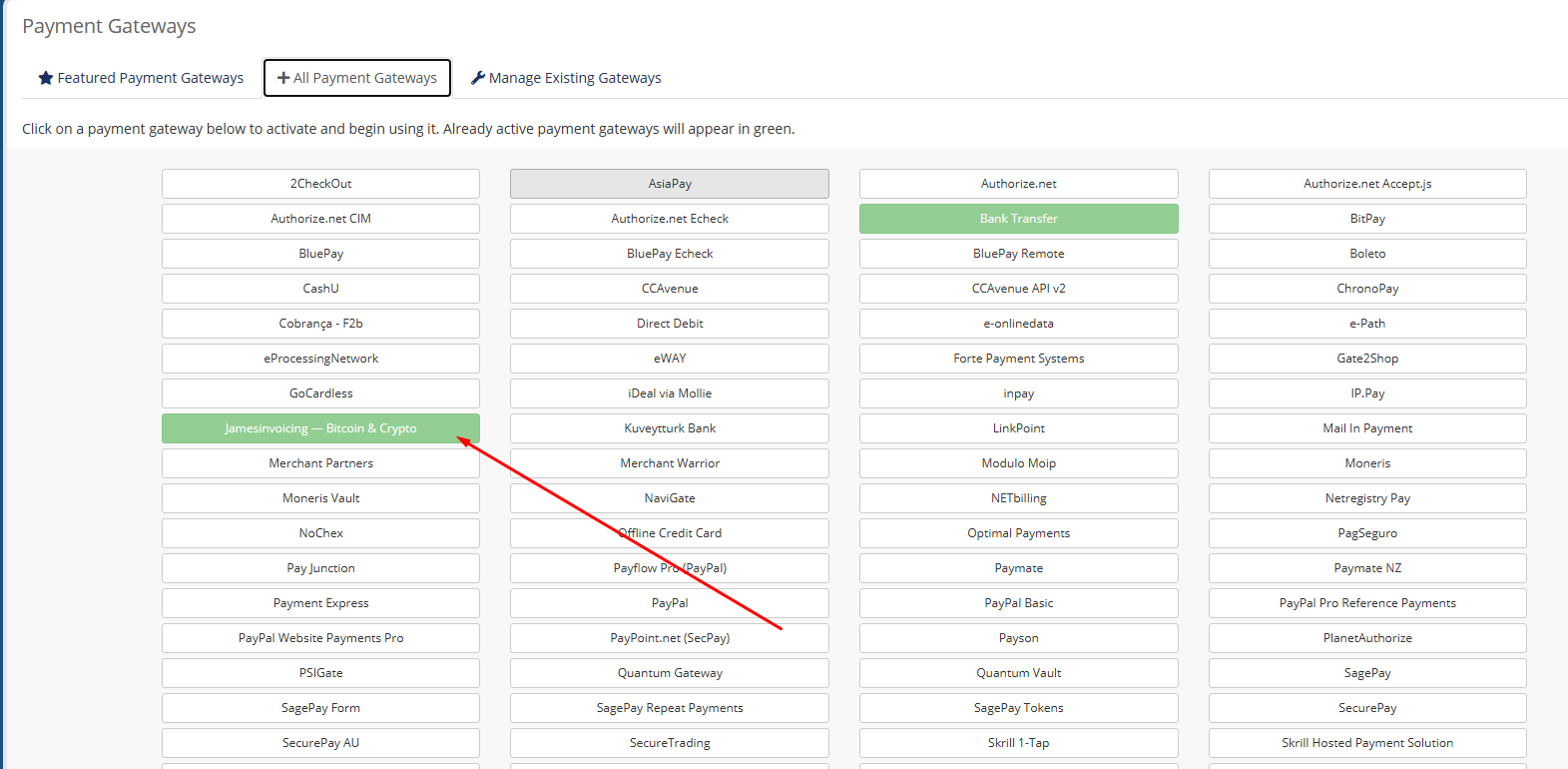
11Activate Jamesinvoicing
Open the All Payment Gateways tab and click Jamesinvoicing — Bitcoin & Crypto. It turns green when active.
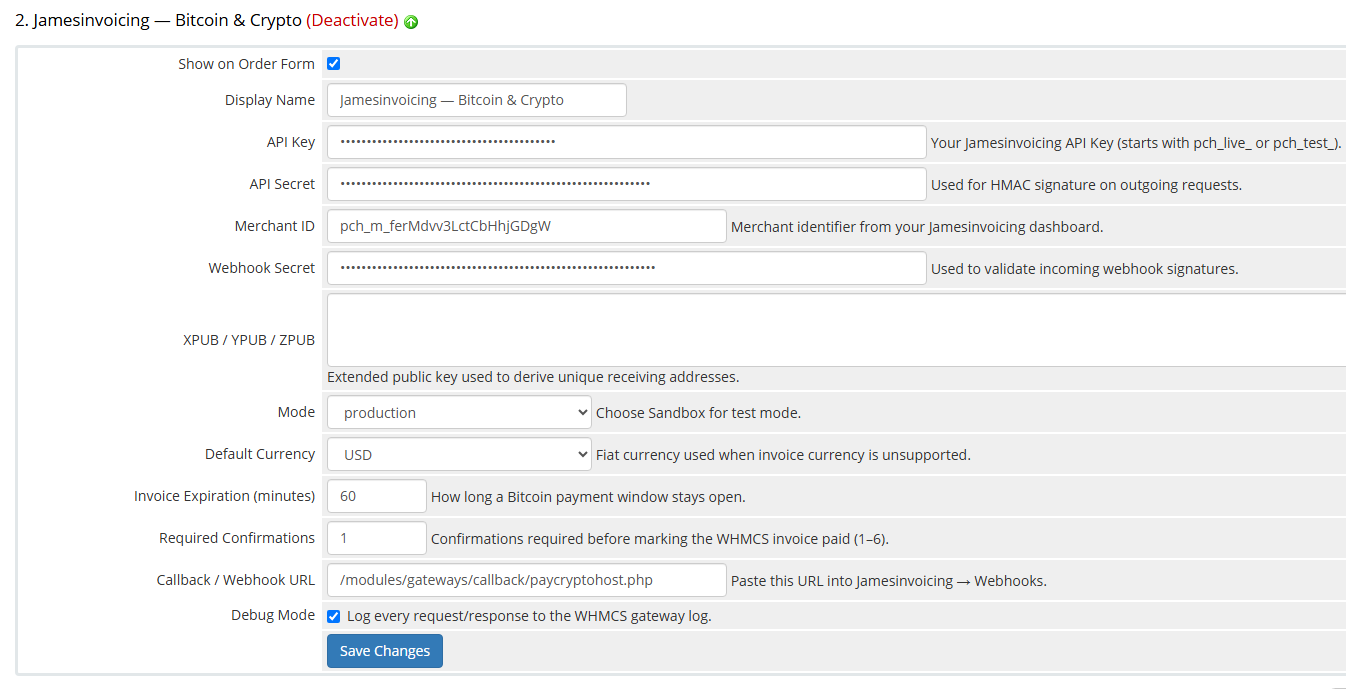
12Paste your keys and save
Tick Show on Order Form, paste your API Key, API Secret, Merchant ID and Webhook Secret from your Jamesinvoicing dashboard, set Mode to production and click Save Changes.
What it does on the invoice page
- Adds a Pay with Bitcoin button to every unpaid WHMCS invoice.
- Generates an invoice routed to your registered Bitcoin receiving address.
- Shows a QR code, countdown, and live confirmation progress (Awaiting → Detected → Confirming → Paid).
- Marks the invoice Paid automatically when confirmations reach your threshold, records the TXID, and emails the customer.
Troubleshooting
"Module not active" on the callback URL
The gateway is not activated in WHMCS. Go to Configuration → System Settings → Payment Gateways → All Payment Gateways and click Jamesinvoicing.
Webhook returns 401 "Invalid signature"
Webhook Secret in WHMCS does not match the one shown in Dashboard → Webhooks. Reveal the secret, paste it into the gateway settings, save.
Invoice stays Unpaid after payment
Make sure the Callback URL is reachable from the public internet (no HTTP basic auth, no firewall rules) and that the webhook is enabled for payment.confirmed in your dashboard.
Admin status shows "API connection failed"
API Key is missing, wrong environment, or suspended. Rotate the key under Dashboard → API Keys and update the gateway settings.
Non-custodial by design
Each invoice is paid straight to your registered Bitcoin address. Funds never pass through Jamesinvoicing.
Shopify app
Accept Bitcoin and other crypto on any Shopify store. Each order gets a unique address and a live confirmation timer — funds settle straight to your wallet, Jamesinvoicing never holds them.
A listed Shopify app is not published yet. Shopify stores connect through the Jamesinvoicing REST API — create an invoice when the order is placed and mark the order paid from the payment webhook.
Install in 5 steps
Open the listing
Approve permissions
Paste your API Key
Add receiving wallets
Activate at checkout
Generate your key under Dashboard → API Keys. Use pch_test_* keys against a development store.
What it does at checkout
- Adds Pay with crypto (Jamesinvoicing) as a payment option on every Shopify checkout.
- Lets the customer pick a coin — BTC, ETH, LTC, USDT (TRC20) or USDT (ERC20).
- Shows the exact amount, a unique address, a QR code and a live countdown.
- Verifies the on-chain TXID, amount, confirmation count and order number on the webhook.
- Marks the order Paid, records the TXID in order notes, and emails the customer.
- Rejects duplicate TXIDs, reused addresses, underpayments and overpayments.
Supported currencies
Bitcoin (BTC), Ethereum (ETH), Litecoin (LTC), USDT (TRC20), USDT (ERC20), and additional coins as Jamesinvoicing adds support.
Order status mapping
| Jamesinvoicing | Shopify order |
|---|---|
| Pending | Payment pending |
| Detected | Processing (customer paid, awaiting confirmations) |
| Confirming | Processing |
| Paid / Confirmed | Completed |
| Expired | Payment failed → order voided |
| Failed | Payment failed |
Webhook
The app auto-registers its callback URL with Jamesinvoicing on install. Each webhook is HMAC-signed with the X-Paycrypto-Signature header — invalid signatures are rejected with a 401 before any order is touched.
{
  "event": "invoice.confirmed",
  "data": {
    "payment_id": "a1b2c3d4",
    "order_number": "#1042",
    "currency": "BTC",
    "amount": 0.00298507,
    "tx_hash": "9f3a…",
    "confirmations": 2
  }
}
Troubleshooting
"Jamesinvoicing" not visible at checkout
Activate it under Settings → Payments → Alternative payment methods. Some Shopify plans hide alternative methods until at least one is enabled.
Webhook returns 401 "Invalid signature"
Rotate the Webhook Secret in Dashboard → Webhooks, paste the new value into the app settings, and save.
Order stays Pending after payment
Customer paid below the required amount, or the network is still confirming. Underpayments are flagged on the order — the customer can top up within the expiry window.
"Invalid API Key" / 401 on save
Make sure the key is Active and matches the environment (pch_live_ on live stores, pch_test_ on development stores).
Crypto address rejected as invalid
The app validates format per network. Make sure BTC starts with bc1/1/3, ETH/ERC20 with 0x, LTC with ltc1/L/M, and TRC20 with T.
Non-custodial by design
Each Shopify order is paid straight to your registered wallet address. Funds never pass through Jamesinvoicing.
BigCommerce integration
Accept Bitcoin, Ethereum and USDT on any BigCommerce store using Jamesinvoicing's merchant API + BigCommerce's built-in Webhooks. No native marketplace app yet — this guide wires it up in about 15 minutes. See the BigCommerce landing page for feature details.
A one-click BigCommerce Single-Click App is on our roadmap. In the meantime the same Jamesinvoicing merchant API that powers our WordPress plugin, WHMCS module, and Shopify app works with BigCommerce through the steps below.
Install in 5 steps
Get your API Key
Add an Offline Payment Method
Create the order webhook
store/order/created with a destination that calls Jamesinvoicing's generate-address endpoint.Register Jamesinvoicing webhook
https://yourapp.com/pch/webhook). It receives payment.detected → confirming → confirmed → expired, HMAC-signed.Flip order status
status_id. See the mapping table below.Order status mapping
| Jamesinvoicing event | BigCommerce status | status_id |
|---|---|---|
| payment.detected | Awaiting Fulfillment (Processing) | 11 |
| payment.confirming | Awaiting Fulfillment (Processing) | 11 |
| payment.confirmed | Completed | 10 |
| payment.expired | Cancelled | 5 |
Create the crypto invoice
When a BigCommerce order is placed, call Jamesinvoicing to generate a unique address:
curl -X POST https://jamesinvoicing.com/api/public/v1/merchant/generate-address \
  -H "Authorization: Bearer pch_live_YOUR_KEY" \
  -H "Content-Type: application/json" \
  -d '{
    "order_number": "1042",
    "amount_usd": 129.00,
    "customer_email": "buyer@example.com",
    "coin": "BTC"
  }'
Verify the webhook + update BigCommerce
import crypto from "node:crypto";

// In your webhook handler
const sig = req.headers["x-paycrypto-signature"];
const expected = crypto.createHmac("sha256", PCH_WEBHOOK_SECRET)
  .update(rawBody).digest("hex");
if (sig !== expected) return res.status(401).end();

const { event, invoice } = JSON.parse(rawBody);
const map = { "payment.detected": 11, "payment.confirming": 11, "payment.confirmed": 10, "payment.expired": 5 };

await fetch(`https://api.bigcommerce.com/stores/${STORE_HASH}/v2/orders/${invoice.order_number}`, {
  method: "PUT",
  headers: {
    "X-Auth-Token": BC_ACCESS_TOKEN,
    "Content-Type": "application/json",
  },
  body: JSON.stringify({ status_id: map[event] }),
});
Non-custodial by design
Each BigCommerce order is paid straight to your registered wallet address. Funds never pass through Jamesinvoicing.
Custom website integration
Any website — PHP, Node.js, Python, Ruby, .NET, static + serverless — can accept crypto payments directly through the Jamesinvoicing REST API. No plugin required: create an invoice from your server, redirect the customer to the hosted pay_url, and receive a signed webhook when payment confirms.
Open the Custom Website Integration guide → — copy-paste examples for cURL, PHP, Node.js, and Python covering invoice creation, redirect, status polling, and HMAC webhook verification.
Authentication
Send your secret key as a bearer token on every request. Keys can be created from the dashboard under Settings → API keys. Treat secret keys like a password — never ship them in browser code.
curl -X POST https://www.jamesinvoicing.com/api/public/v1/auth -H "Authorization: Bearer pch_live_YOUR_KEY"Create invoice
Create a USD-priced Bitcoin invoice. The BTC amount is locked to the spot rate at creation.
curl -X POST https://www.jamesinvoicing.com/api/public/v1/merchant/generate-address   -H "Authorization: Bearer pch_live_YOUR_KEY"   -H "Content-Type: application/json" \
  -d '{
    "order_number": "ORD-1042",
    "customer_email": "jane@example.com",
    "amount_usd": 199.00,
    "expires_in_minutes": 15
}'{
"payment_id": "a1b2c3d4",
"amount_btc": 0.00298507,
"amount_usd": 199.00,
"address": "bc1qxy2...",
"status": "Pending",
"expires_at": "2026-05-27T14:32:00Z",
"pay_url": "https://jamesinvoicing.com/pay/a1b2c3d4"
}Get invoice
curl https://www.jamesinvoicing.com/api/public/v1/merchant/invoice-status/a1b2c3d4 -H "Authorization: Bearer pch_live_YOUR_KEY"List invoices
Invoice listing is available in the authenticated merchant dashboard. The public merchant API supports invoice creation and status lookup.
Webhooks
Configure a webhook URL to receive invoice.paid, invoice.expired, and invoice.confirmed events. Every payload is HMAC-signed via the X-Paycrypto-Signature header.
{
  "event": "invoice.paid",
  "created_at": "2026-05-27T14:35:11Z",
  "data": {
    "payment_id": "a1b2c3d4",
    "amount_btc": 0.00298507,
    "tx_hash": "9f3a..."
  }
}
Errors
The API uses conventional HTTP status codes.
| Code | Meaning |
|---|---|
| 200 | Success |
| 400 | Invalid request body |
| 401 | Missing or invalid API key |
| 404 | Resource not found |
| 429 | Rate limit exceeded |
| 5xx | Server-side error — retry with backoff |